
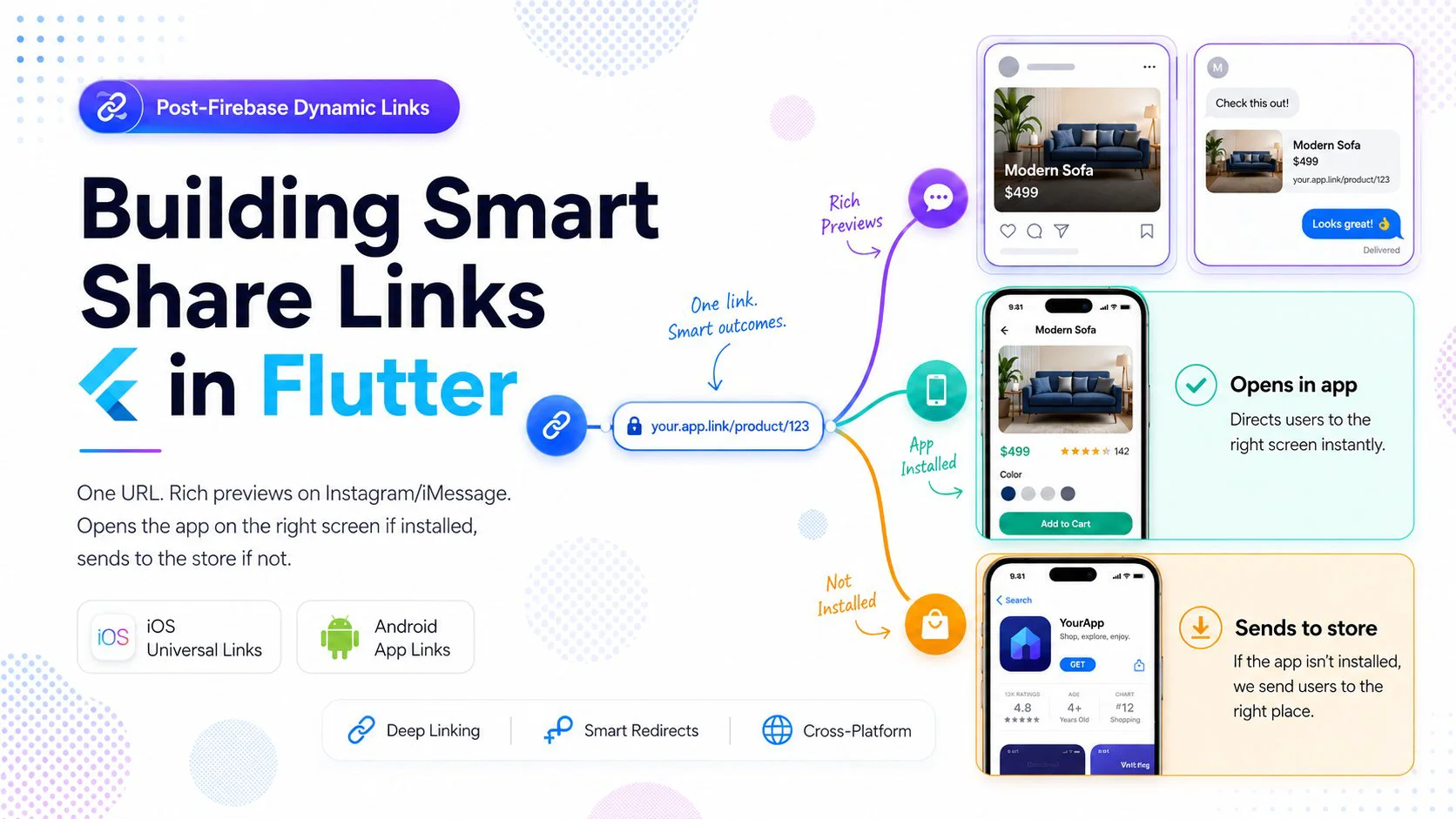
If you've ever shared a Spotify track or an Airbnb listing into iMessage and seen a beautiful preview card pop up — then tapped it and landed deep inside the app — that's the experience we're building today.
This used to be a one-package job with Firebase Dynamic Links. FDL was shut down on August 25, 2025, so we're rolling our own. The good news: it's not that hard, you get full control over previews, and you stop paying a vendor for what is essentially a static file and 40 lines of HTML.
Here's what we'll cover:
1. The architecture (it's simpler than it looks)
2. The landing page — OG meta tags + smart redirect
3. iOS Universal Links setup
4. Android App Links setup
5. Handling the link inside Flutter with app_links
6. Deferred deep links (preserving the target through install)
7. Sharing from the app
8. Testing & common gotchas
---
1. The Architecture
A "share link" is really one URL doing three jobs depending on context:
                    https://yourapp.com/p/abc123
                              │
                              ▼
              ┌───────────────────────────────┐
              │   What's reading this URL?    │
              └───────────────────────────────┘
                              │
        ┌─────────────────────┼─────────────────────┐
        ▼                     ▼                     ▼
  Social crawler        Phone w/ app          Phone w/o app
  (FB, IG, iMessage,    installed             installed
   Slack, Twitter)            │                     │
        │                     ▼                     ▼
        ▼              OS intercepts the      Browser loads
  Reads <meta> tags    URL before browser     landing page
  Builds preview       opens, hands it        → JS sniffs UA
  card with image,     directly to app        → Redirects to
  title, description   → app routes to        App Store /
                       correct screen         Play Store
The key insight: the same URL is both a webpage and a deep link. The OS decides which one wins based on whether your app is installed and verified for that domain. The webpage only ever runs when no app intercepts — so it's free to be a smart redirector.
We need three things on the server:
https://yourapp.com/p/<id> — a dynamic landing page with OG tags + smart redirecthttps://yourapp.com/.well-known/apple-app-site-association — iOS verificationhttps://yourapp.com/.well-known/assetlinks.json — Android verificationAnd two things in the Flutter app:
app_links package to receive the URL and route to the right screenLet's build it.
---
2. The Landing Page (OG Meta + Smart Redirect)
This is the page that crawlers scrape for previews and that humans without your app installed land on. Generate it server-side per shared item so each post has its own preview.
Here's a minimal Node/Express handler — adapt to whatever stack you use:
app.get('/p/:id', async (req, res) => {
  const post = await db.posts.findById(req.params.id);
  if (!post) return res.status(404).send('Not found');

  const title = escapeHtml(post.title);
  const description = escapeHtml(post.description);
  const image = post.imageUrl;        // must be absolute https URL, 1200x630 ideal
  const url = `https://yourapp.com/p/${post.id}`;

  res.set('Cache-Control', 'public, max-age=300');
  res.send(`<!DOCTYPE html>
<html lang="en">
<head>
  <meta charset="utf-8">
  <title>${title}</title>
  <meta name="description" content="${description}">

  <!-- Open Graph (Facebook, Instagram, iMessage, LinkedIn, Slack) -->
  <meta property="og:type" content="article">
  <meta property="og:url" content="${url}">
  <meta property="og:title" content="${title}">
  <meta property="og:description" content="${description}">
  <meta property="og:image" content="${image}">
  <meta property="og:image:width" content="1200">
  <meta property="og:image:height" content="630">
  <meta property="og:site_name" content="YourApp">

  <!-- Twitter / X -->
  <meta name="twitter:card" content="summary_large_image">
  <meta name="twitter:title" content="${title}">
  <meta name="twitter:description" content="${description}">
  <meta name="twitter:image" content="${image}">

  <!-- iOS Smart Banner fallback (still useful in Safari) -->
  <meta name="apple-itunes-app" content="app-id=1234567890, app-argument=${url}">

  <style>
    body { font-family: -apple-system, system-ui, sans-serif;
           max-width: 480px; margin: 40px auto; padding: 0 20px; text-align: center; }
    img.cover { width: 100%; border-radius: 12px; }
    .btn { display: inline-block; padding: 14px 28px; background: #111; color: #fff;
           border-radius: 999px; text-decoration: none; margin-top: 16px; }
  </style>
</head>
<body>
  <img class="cover" src="${image}" alt="">
  <h1>${title}</h1>
  <p>${description}</p>
  <a class="btn" id="openApp" href="${url}">Open in YourApp</a>

  <script>
    // Smart redirect: send mobile users to the store if the app didn't intercept.
    (function () {
      var ua = navigator.userAgent || '';
      var isIOS = /iPhone|iPad|iPod/i.test(ua);
      var isAndroid = /Android/i.test(ua);
      if (!isIOS && !isAndroid) return; // desktop / crawler: just show the page

      var APP_STORE  = 'https://apps.apple.com/app/id1234567890';
      var PLAY_STORE = 'https://play.google.com/store/apps/details?id=com.yourcompany.yourapp';

      // If the OS recognises this URL as a Universal/App Link, it will
      // intercept *before* this script runs. If we're still here after
      // a short delay, the app isn't installed → store.
      setTimeout(function () {
        if (document.hidden) return; // app opened, page backgrounded
        window.location.href = isIOS ? APP_STORE : PLAY_STORE;
      }, 1500);
    })();
  </script>
</body>
</html>`);
});
A few things worth knowing about this page:
The image matters more than the text. For Instagram, iMessage, and Twitter, the preview is basically the og:image. Use 1200×630, absolute HTTPS URL, under 5 MB, and not behind any auth. If you can pre-render a branded composite (title + cover photo on a background), do it — it converts much better than a raw user-uploaded image.
Crawlers don't run JavaScript. Facebook's debugger, iMessage's link unfurler, Slack — they all read static HTML. So the <meta> tags must be in the initial response, not injected client-side. This is why a single-page app at /p/:id won't generate previews unless you SSR.
The setTimeout redirect is a heuristic, not a guarantee. When a Universal Link or App Link is correctly verified, the OS hijacks the URL before the browser ever loads it, so the page (and the script) never runs. If the page does run, that's evidence the app isn't installed — so we redirect to the store. The document.hidden check guards against the rare case where the app opens slightly later than expected.
Don't forget the visible "Open in App" button. Some users tap a share link from inside an in-app webview (Instagram bio, Telegram preview) that won't trigger Universal Links. The button gives them a manual escape hatch.
---
3. iOS Universal Links
Two pieces: a JSON file on your domain, and a capability in Xcode.
apple-app-site-association
Host this at https://yourapp.com/.well-known/apple-app-site-association (no .json extension, served as application/json, over HTTPS, no redirects):
{
  "applinks": {
    "details": [
      {
        "appIDs": ["TEAMID.com.yourcompany.yourapp"],
        "components": [
          { "/": "/p/*", "comment": "matches share links" }
        ]
      }
    ]
  }
}
Find TEAMID in Apple Developer → Membership. Your appIDs array can contain multiple entries if you have flavors (staging, prod).
Xcode
Open ios/Runner.xcworkspace → Runner target → Signing & Capabilities → + Capability → Associated Domains → add:
applinks:yourapp.com
That's it on the iOS side. Heads up: Apple's CDN caches the AASA file aggressively. First fetch can take up to 24 hours, and the simulator handles AASA differently from a real device — always test on a physical device before declaring victory.
---
4. Android App Links
Same shape, different files.
assetlinks.json
Host at https://yourapp.com/.well-known/assetlinks.json:
[{
  "relation": ["delegate_permission/common.handle_all_urls"],
  "target": {
    "namespace": "android_app",
    "package_name": "com.yourcompany.yourapp",
    "sha256_cert_fingerprints": [
      "14:6D:E9:83:C5:73:06:50:D8:EE:B9:95:2F:34:FC:64:16:A0:83:42:E6:1D:BE:A8:8A:04:96:B2:3F:CF:44:E5"
    ]
  }
}]
The #1 cause of "works in debug, broken in production" is using the debug keystore's SHA-256 instead of the release one. If you ship through Play App Signing (which is now the default), grab the production SHA-256 from Play Console → your app → Release → Setup → App Integrity → App signing. Include both debug and release fingerprints in the array during testing.
To get the debug fingerprint locally:
cd android
./gradlew signingReport
AndroidManifest.xml
Add an intent filter to your main <activity>:
<intent-filter android:autoVerify="true">
    <action android:name="android.intent.action.VIEW" />
    <category android:name="android.intent.category.DEFAULT" />
    <category android:name="android.intent.category.BROWSABLE" />
    <data android:scheme="https"
          android:host="yourapp.com"
          android:pathPrefix="/p/" />
</intent-filter>
The android:autoVerify="true" is what makes Android fetch assetlinks.json at install time and skip the "Open with…" disambiguation dialog. Without it, your app shows up as one option among many — terrible UX.
Disable Flutter's default deep link handler (if using app_links)
If you're on Flutter ≥ 3.27, the framework includes its own deep-link handler that will fight with app_links. Disable it by adding this metadata inside your <activity> tag:
<meta-data android:name="flutter_deeplinking_enabled" android:value="false" />
---
5. Handling the Link in Flutter
Add the package:
dependencies:
  app_links: ^6.3.0
  go_router: ^14.0.0
Then wire it up. The pattern: grab the initial link (the one that launched the app from cold start), and subscribe to a stream of subsequent links (when the app is already running in the background and a new link comes in).
import 'dart:async';
import 'package:app_links/app_links.dart';
import 'package:flutter/material.dart';
import 'package:go_router/go_router.dart';

class DeepLinkService {
  DeepLinkService._();
  static final DeepLinkService instance = DeepLinkService._();

  final AppLinks _appLinks = AppLinks();
  StreamSubscription<Uri>? _sub;

  Future<void> init(GoRouter router) async {
    // 1. Cold start: app launched by tapping a link
    try {
      final initial = await _appLinks.getInitialLink();
      if (initial != null) _route(router, initial);
    } catch (e, st) {
      debugPrint('Initial link error: $e\n$st');
    }

    // 2. Warm start: link tapped while app is alive
    _sub = _appLinks.uriLinkStream.listen(
      (uri) => _route(router, uri),
      onError: (e) => debugPrint('Link stream error: $e'),
    );
  }

  void _route(GoRouter router, Uri uri) {
    debugPrint('Handling deep link: $uri');

    // https://yourapp.com/p/abc123  →  /post/abc123
    if (uri.pathSegments.length >= 2 && uri.pathSegments[0] == 'p') {
      final id = uri.pathSegments[1];
      router.push('/post/$id');
      return;
    }

    // Fallback for unknown patterns
    router.push('/');
  }

  void dispose() => _sub?.cancel();
}
Wire it into your app's startup:
final _router = GoRouter(
  routes: [
    GoRoute(path: '/', builder: (_, __) => const HomeScreen()),
    GoRoute(
      path: '/post/:id',
      builder: (_, state) => PostScreen(id: state.pathParameters['id']!),
    ),
  ],
);

void main() {
  runApp(MyApp());
}

class MyApp extends StatefulWidget {
  @override State<MyApp> createState() => _MyAppState();
}

class _MyAppState extends State<MyApp> {
  @override
  void initState() {
    super.initState();
    // Run after first frame so the router is ready
    WidgetsBinding.instance.addPostFrameCallback((_) {
      DeepLinkService.instance.init(_router);
    });
  }

  @override
  void dispose() {
    DeepLinkService.instance.dispose();
    super.dispose();
  }

  @override
  Widget build(BuildContext context) {
    return MaterialApp.router(routerConfig: _router);
  }
}
Why two listeners?
Cold-start and warm-start hit different code paths in the OS. getInitialLink() returns the URL that launched the process (or null). uriLinkStream only fires while the app is already running. If you skip one, you'll have a working flow that mysteriously breaks half the time. Always wire both.
---
6. Deferred Deep Links (App Not Installed Yet)
Here's the tricky scenario: a user gets a share link, doesn't have your app, gets redirected to the store, installs it, opens it — and lands on the home screen. The original context is gone.
FDL solved this server-side by fingerprinting devices. Without it, you have two practical options:
Option A: Clipboard handoff (simplest)
On the landing page, copy the link path to the clipboard before redirecting. On first app launch, read the clipboard and check if it matches your URL pattern.
// In the landing page JS, before redirecting to the store:
try { navigator.clipboard.writeText(url); } catch (_) {}
// First launch in the Flutter app:
import 'package:flutter/services.dart';

Future<void> checkDeferredLink(GoRouter router) async {
  final prefs = await SharedPreferences.getInstance();
  if (prefs.getBool('deferred_checked') == true) return;
  await prefs.setBool('deferred_checked', true);

  final data = await Clipboard.getData(Clipboard.kFormatPlain);
  final text = data?.text;
  if (text == null) return;

  final uri = Uri.tryParse(text);
  if (uri?.host == 'yourapp.com' && uri!.pathSegments.first == 'p') {
    DeepLinkService.instance._route(router, uri);
  }
}
Caveats: iOS 14+ shows a paste banner ("YourApp pasted from Safari") which can spook users. Run this only on the first launch, and gate it behind a brief onboarding screen so the paste happens in context.
Option B: Server-side fingerprint match
When the user lands on /p/<id> without the app, log a record keyed on a coarse fingerprint (IP + user-agent + timestamp window). On first app launch, the app POSTs its own fingerprint to your backend and asks "did this device just visit a share link?". If you find a match within ~10 minutes, return the link target.
This is more robust than clipboard and what services like Branch, Adjust, and the new generation of FDL replacements do under the hood. It's more code, but for a referrals/onboarding flow it's worth it.
For most consumer apps starting out, Option A is fine. Move to Option B if attribution accuracy starts mattering.
---
7. Sharing From the App
The other half: producing the share link. Use share_plus:
import 'package:share_plus/share_plus.dart';

Future<void> sharePost(Post post) async {
  final url = 'https://yourapp.com/p/${post.id}';
  await Share.share(
    '${post.title}\n$url',
    subject: post.title,
  );
}
That's it. Because the URL points to a real webpage with real OG tags, every share target (iMessage, WhatsApp, Telegram, Discord, Slack, X) generates a rich preview automatically. You did the work once in step 2.
---
8. Testing & Common Gotchas
A short checklist that will save you a weekend:
Validate your AASA and assetlinks.json files before testing anything in the app.
https://app-site-association.cdn-apple.com/a/v1/yourapp.com (Apple's debug endpoint)https://digitalassetlinks.googleapis.com/v1/statements:list?source.web.site=https://yourapp.com&relation=delegate_permission/common.handle_all_urlsTest the link from outside your app. Tapping a URL inside Chrome's address bar on Android will not trigger your App Link — that's intentional. Paste the link into a Note, a Google Doc, or send yourself an SMS, then tap it from there.
iOS Simulator behaves differently from a real device. AASA fetching, in particular, is unreliable on the simulator. Always do final testing on a physical phone.
Clear App Link verification cache during testing. On Android:
adb shell pm clear-app-links com.yourcompany.yourapp
adb shell pm verify-app-links --re-verify com.yourcompany.yourapp
adb shell pm get-app-links com.yourcompany.yourapp
The third command tells you whether Android believes your assetlinks.json — verified is what you want.
Watch out for in-app browsers. Tapping a share link from inside Instagram, Facebook, or TikTok opens it in their embedded webview, which doesn't honor Universal/App Links. That's why the "Open in App" button on your landing page exists. Some apps respect a intent:// URL on Android — overkill for most teams but worth knowing.
The release SHA-256 thing, one more time. If your links work for you locally but break for users on the store, 95% chance it's because assetlinks.json has your debug fingerprint instead of the Play App Signing one. Add both.
Domain costs you nothing extra. You don't need a new domain — yourapp.com/p/... works fine. Some teams use a separate domain like yapp.link for shorter share URLs; it's purely cosmetic.
---
Wrapping Up
The whole stack:
/.well-known/app_links and go_routerWhat you get:
The era of paying a third party to host a redirect file is over. Ship it.
Happy Coding : )
Loading…